
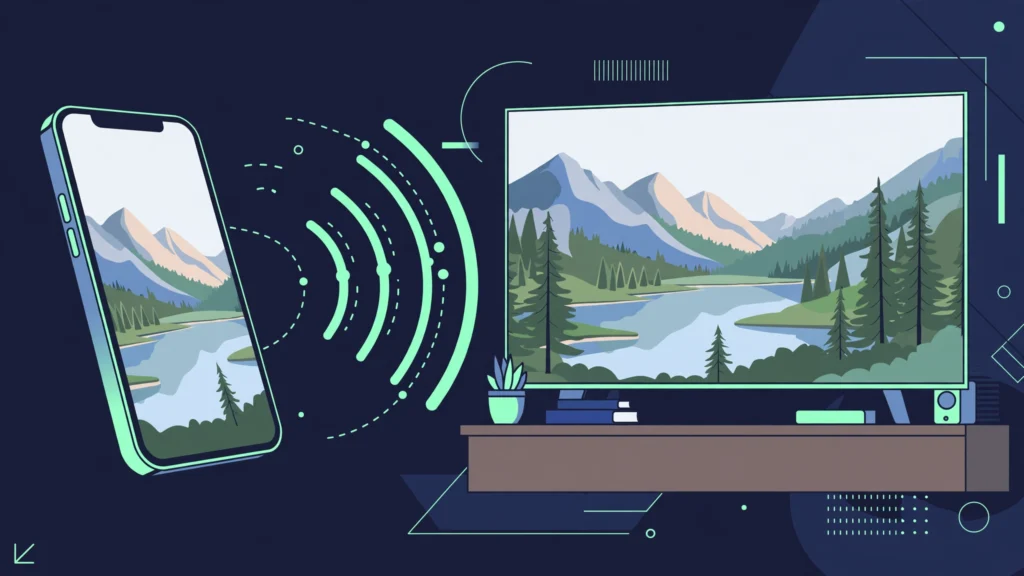
How to Connect Your Phone to Your TV: The Complete 2026 Guide
Learning how to connect your phone to your TV is one of those small skills that changes how you use both devices. Suddenly holiday photos are big enough for the whole family to see, a YouTube video becomes a living-room event, a mobile game becomes a party game, and a work presentation does not require a laptop at all. The good news is that in 2026 there are more ways to do it than ever before, and most of them take less than a minute once you know which method matches your phone and your TV. The confusing part is that the right method depends on your exact combination, so this guide covers every major option for iPhone and Android, for Samsung, LG, and other smart TVs, and for older TVs that need a little help.
If you are setting up a new device, our guide to setting up a new phone in 2026 is a useful companion, and if your phone is running low on space for all those photos and videos you want to show, our guide to freeing up storage on iPhone and Android will help. Once your phone is ready, connecting it to your TV is straightforward. Start by identifying your phone and your TV, then pick the method below that fits both.
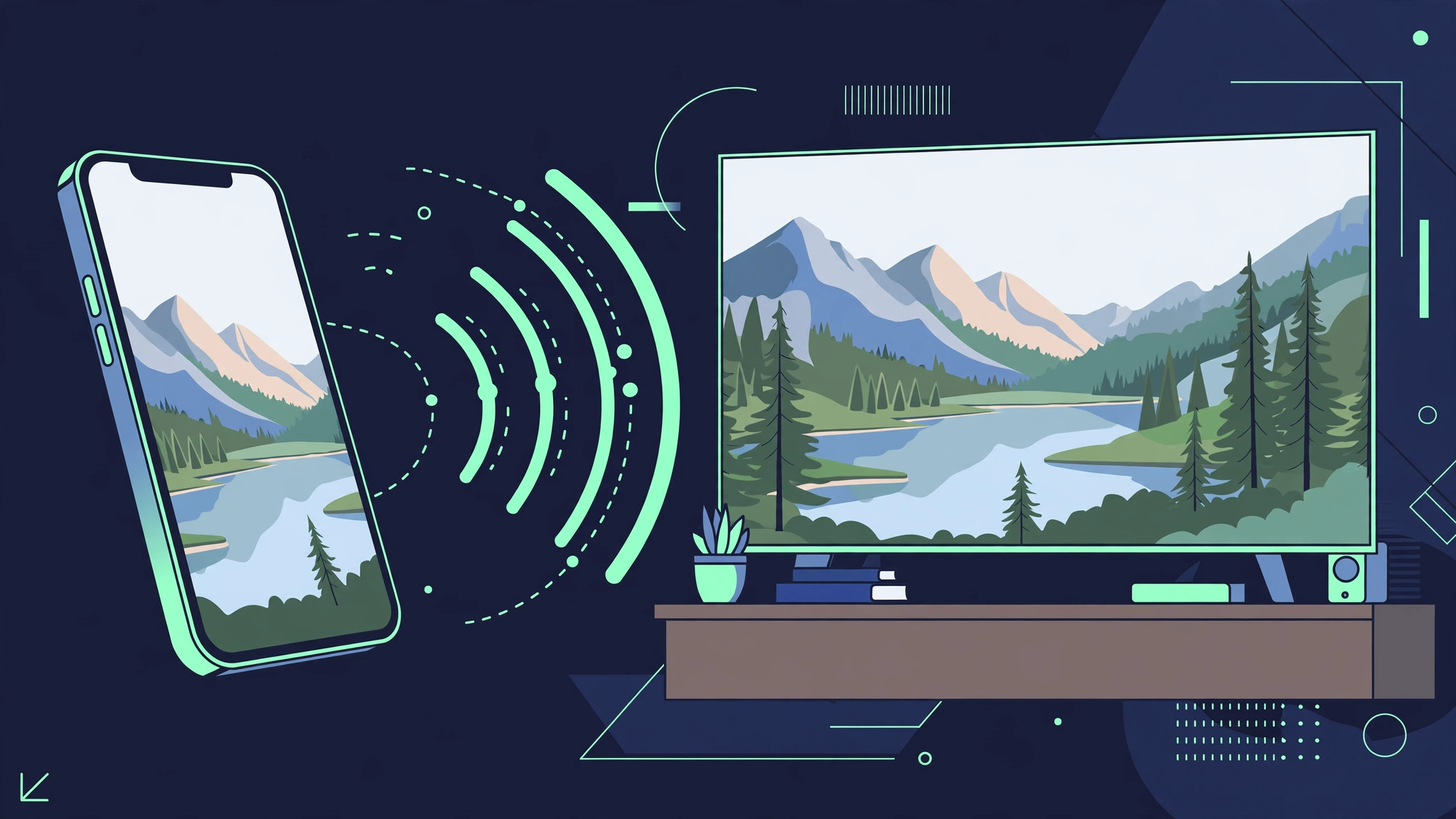
First, Identify Your Phone and TV Combination
Before you try anything, answer two questions. First, do you have an iPhone or an Android phone? Second, is your TV a smart TV with built-in casting, a Chromecast or streaming stick attached, an Apple TV, or a basic TV with only HDMI ports? Those two answers determine almost everything. An iPhone works best with AirPlay, which is built into Apple TV and many modern smart TVs from Samsung, LG, Sony, and others. An Android phone works best with Chromecast built-in, which is also found in many smart TVs and in Google TV and Chromecast devices. Samsung phones add their own Smart View option, and most TVs also support Miracast or a wired HDMI connection as a fallback.
Also check your Wi-Fi. Wireless casting works best when your phone and your TV are on the same Wi-Fi network. If your phone is on mobile data and your TV is on Wi-Fi, casting will usually fail or refuse to start. Connect both to the same network, preferably a stable 5 GHz network if your router offers one, and keep the phone reasonably close to the router for the best quality. If your Wi-Fi is slow or unreliable, a wired connection may actually give you a smoother experience than wireless, even though it is less convenient.
Finally, decide what you want to do. Casting a video from YouTube or Netflix is different from mirroring your entire screen. Casting sends just the video to the TV, often in higher quality, while your phone is free for other things. Mirroring shows exactly what is on your phone screen, which is better for photos, games, presentations, and apps that do not support casting. Most methods below support one or both, and knowing which you need will save you frustration.
Method 1: Cast from iPhone with AirPlay
AirPlay is the easiest way to connect an iPhone to a compatible TV, and it is built into iOS, so you need no extra app. First, make sure your iPhone and your TV or Apple TV are on the same Wi-Fi network. Then open Control Centre by swiping down from the top-right corner of the screen, tap Screen Mirroring, and select your TV from the list. If your TV shows an AirPlay code, enter it on your iPhone. Your phone screen should appear on the TV within a few seconds.
For video apps, you often do not need full mirroring. In YouTube, Netflix, and many other apps, tap the AirPlay or cast icon inside the video player and select your TV. The video plays on the TV while your phone acts as a remote, which saves battery and usually gives better quality than mirroring. To stop, open Control Centre again, tap Screen Mirroring, and choose Stop Mirroring, or tap the AirPlay icon in the app and disconnect.
If your TV does not appear in the list, check three things. First, is the TV actually AirPlay-compatible? Many Samsung, LG, Sony, Vizio, and Roku TVs from recent years are, but older models are not. Second, are both devices on the same network, and is AirPlay enabled in the TV’s settings? Third, try restarting both devices, which fixes more casting problems than any other single step. If your TV is not AirPlay-compatible, an Apple TV box or a compatible streaming stick will add AirPlay support.
Method 2: Cast from Android with Chromecast Built-In
Most Android phones support Chromecast, which is built into Google TV, Chromecast devices, and many smart TVs. To cast a video, open an app like YouTube or Netflix, tap the cast icon in the top corner, and select your TV. The video starts playing on the TV, and your phone becomes the remote. You can lock your phone, answer messages, or even use other apps while the video continues, which is one of casting’s biggest advantages.
To mirror your whole Android screen, swipe down to open Quick Settings, look for Cast, Screen Cast, or Smart View, depending on your phone brand, and select your TV. Samsung phones call this Smart View, Pixel phones call it Cast, and other brands vary slightly, but the idea is the same. If you do not see a cast option, open Settings, search for Cast, and follow the prompts. As with AirPlay, both devices must be on the same Wi-Fi network, and restarting both devices fixes many problems.
One Android tip is worth knowing: some apps block mirroring for copyright reasons, especially paid video services. If a video plays on your phone but shows a black screen when mirrored, that is usually a copyright protection, not a fault with your phone or TV. In that case, use the app’s own cast button instead of full-screen mirroring, because casting is the supported path and will work where mirroring is blocked.
Method 3: Use Your Smart TV’s Built-In Apps and Features
Many people overlook the simplest option: your smart TV may already have the apps you need. If you want to watch YouTube, Netflix, or another service on the big screen, opening the app directly on the TV often gives better quality and a more comfortable remote-control experience than casting from your phone. Your phone is still useful here, as a way to find something to watch and send it to the TV, but the TV does the actual playing.
Most smart TVs also support casting without any extra device. Samsung TVs support both Chromecast and AirPlay on recent models, LG TVs support AirPlay and Miracast, and Google TV and Android TV models have Chromecast built in. Check your TV’s settings or manual for the exact terms it uses, because brands name the same feature differently. Once you know which protocol your TV supports, use the matching method from this guide and it should work immediately.
If your smart TV is a few years old and its apps have become slow or unsupported, a streaming stick is a cheap upgrade. A Chromecast with Google TV, a Fire TV Stick, or a Roku stick plugs into an HDMI port, adds modern casting and apps, and costs far less than a new TV. This is often the best fix for an otherwise perfectly good TV whose software has aged. Pair it with our advice on setting up a new phone if you are upgrading both devices at once, so everything works together from day one.
Method 4: Connect with a Cable (HDMI and USB-C)
A wired connection is the most reliable method, and it is the best choice when Wi-Fi is weak, when you need the lowest possible delay for gaming, or when your TV has no casting support at all. For iPhone, you need a Lightning or USB-C to HDMI adapter, depending on your model, plus an HDMI cable. Plug the adapter into your phone, connect the HDMI cable to the TV, switch the TV to the correct HDMI input, and your phone screen should appear. Newer iPhones with USB-C can often connect with a USB-C to HDMI cable directly.
For Android, many phones with USB-C support video output over USB-C, but not all of them do. Samsung’s flagship phones, many Pixel models, and other higher-end Android phones support USB-C to HDMI, either directly or through a hub. Budget Android phones often do not support video over USB-C at all, so check your phone’s specifications before buying a cable. If your phone supports it, a USB-C to HDMI cable or adapter gives you a stable, high-quality connection with no Wi-Fi needed. Some adapters also include a charging port, so you can charge your phone while it is connected, which is essential for long sessions.
Wired connections have two drawbacks: you are tethered to the TV by a cable, and you may need to buy an adapter. But they never suffer from Wi-Fi interference, they work on any TV with an HDMI port, and they are the best option for presentations, gaming, and any situation where reliability matters more than convenience. Keep a cable in your bag if you regularly present from your phone, because you never know what a meeting room or a friend’s TV will support.
Method 5: Miracast and Wireless Display for Windows and Android
Miracast is a wireless display standard built into many Windows PCs, Android phones, and smart TVs, especially from LG and other brands. It works similarly to AirPlay and Chromecast, mirroring your screen over Wi-Fi Direct without needing a router. On Android, look for Wireless Display, Miracast, or Screen Mirroring in your display or connection settings. On a Windows PC, press Windows key plus K to open the Cast panel and select your TV.
Miracast is useful as a fallback when Chromecast is not available, but it is less consistent than AirPlay or Chromecast because implementations vary by manufacturer. Some TVs support it well, others barely support it at all, and iPhones do not support Miracast. If your phone and TV both support a newer method, use that instead. Keep Miracast in mind for older TVs and for Windows laptops, where it remains a handy option.
For a living-room setup, you may also want to think about audio. If your TV’s speakers are weak, a soundbar or smart speaker can transform the experience of watching phone content on the big screen. Our roundup of the best smart speakers in 2026 covers options that pair well with a TV setup, and a simple Bluetooth or HDMI soundbar is often the single biggest upgrade you can make to a home viewing setup.
Troubleshooting: When Casting Does Not Work
The most common casting problem is also the easiest to fix: the phone and TV are on different networks. Check that both are on the same Wi-Fi network name, and remember that some routers create separate 2.4 GHz and 5 GHz networks that count as different networks for casting. If your phone is on a guest network and your TV is on the main network, casting will fail. Move both to the same network and try again.
If casting starts but stutters, buffers, or drops, your Wi-Fi signal is probably the problem. Move closer to the router, reduce the distance between your phone and the router, or switch to a wired connection. Closing other apps on your phone, especially apps using the internet heavily, can also help. If the problem persists, restart your router, your phone, and your TV, in that order, and try again. That sequence fixes a surprising number of stubborn casting issues.
If the TV does not appear at all, check that casting is enabled on the TV, that the TV’s software is up to date, and that your phone’s software is up to date. Older TV software sometimes loses casting support after an update, and a factory reset of the TV’s network settings can help in rare cases. If nothing works, a streaming stick or a cable, both covered above, will bypass the problem entirely and get you watching on the big screen today.
Tips for a Better Phone-to-TV Experience
Turn on Do Not Disturb before you mirror your screen for a presentation or a family photo session. Nothing ruins a slideshow like a private message notification appearing on the big screen. For the same reason, close sensitive apps before mirroring, and remember that everything on your phone screen, including notifications, will be visible to everyone watching the TV.
For video, prefer casting over mirroring whenever the app supports it. Casting gives better quality, uses less phone battery, and lets you use your phone normally while the video plays. For photos, games, and presentations, mirroring is the right choice, because you need to see exactly what is on your phone. Knowing which to use, and when, is the key to a smooth experience.
Finally, keep your phone charged. Casting and mirroring use Wi-Fi continuously and can drain a battery faster than normal use. Plug your phone in during long sessions, or use a wired adapter with a charging port. A phone that dies halfway through a film is a small frustration, but it is entirely avoidable with a charger nearby.
Conclusion
Connecting your phone to your TV in 2026 is easier than it has ever been, once you match the method to your devices. iPhone users should start with AirPlay, Android users with Chromecast, Samsung users with Smart View, and anyone with an older TV should consider a streaming stick or a simple HDMI cable. Wireless casting is convenient and works beautifully on a good Wi-Fi network, while a cable remains the most reliable option when quality and stability matter most.
Try the method that fits your phone and TV today. In most cases you will be watching on the big screen within a minute, with no extra apps, no complicated setup, and no need to buy anything new. And once you have done it once, it becomes second nature, opening up your photos, videos, games, and presentations to the biggest screen in your home.